
I recently faced a frustrating issue while working on my site.
Everything was running smoothly until I tested Elementor One for a short time. After cancelling it, my website refused to connect with Elementor Pro.
The error looked simple:
“Your license is missing. Please check your key again.”
But the fix was not obvious.
I tried multiple solutions. Nothing worked at first. Finally, my WordPress maintenance team stepped in and resolved it with a method that most users do not know.
Here is the complete breakdown.
The Situation
I had:
- An active Elementor Pro Expert license
- A recently expired Elementor One (Agency plan)
- A live production website
After the Elementor One subscription expired, I noticed:
- “Connect & Activate” was not working
- The license section showed errors
- Elementor Pro features stopped syncing
This created a serious issue because Elementor depends on license validation to unlock Pro features.
What I Tried First
I started with standard troubleshooting steps.
Plugin and license fixes
- Reinstalled Elementor Pro
- Deactivated and reactivated plugins
- Tried reconnecting the account
Database cleanup
- Removed _elementor_pro_license_data
- Cleared _site_transient_elementor* entries
Server and API checks
- Tested the /wp-json/ endpoint
- Disabled ModSecurity on hosting
- Verified outbound API requests
Cloudflare and caching
- Disabled proxy
- Purged cache
- Turned off security rules
Despite trying all of this, the issue remained unchanged.
The Real Problem
The issue was not related to hosting or caching.
👉 The real cause was:
A broken internal connection left behind by Elementor One
When Elementor One is activated, your domain gets linked to a different system within Elementor.
After cancellation:
- That connection does not fully reset
- Your site still tries to validate against the old setup
- The normal activation flow fails
This creates a conflict between:
- Elementor One (expired)
- Elementor Pro (active)
Why the Error Appears
Elementor usually activates in three steps:
- Connect your account
- Fetch subscription details
- Validate license
In this case:
- The system checks the wrong subscription
- Validation fails
- The “license missing” error appears
Even though your Pro license is valid, the process fails before verification.
The Fix My WordPress Maintenance Team Applied
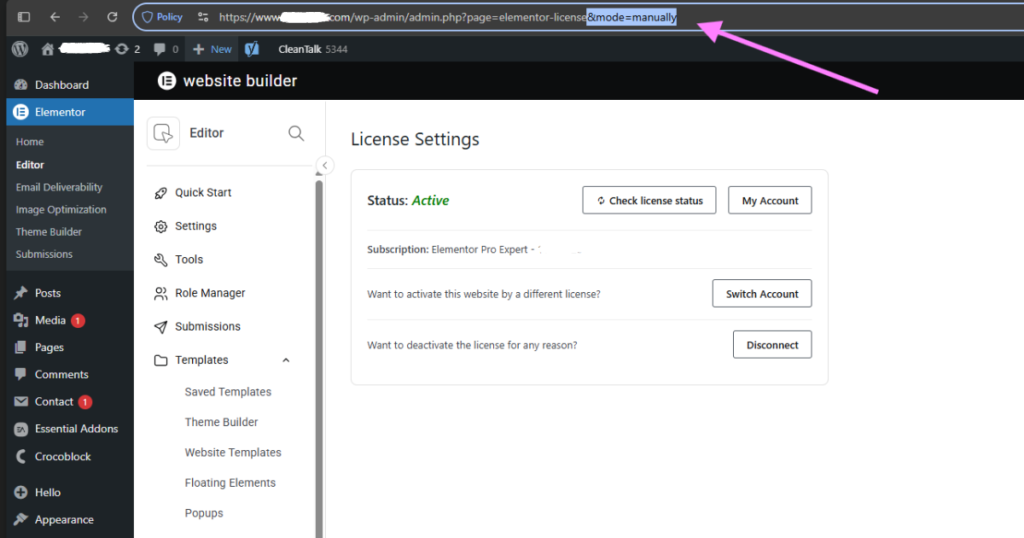
My WordPress maintenance team used a manual activation method that bypasses the broken connection.
This approach avoids the default account sync process.
Step 1: Open the manual activation page
Go to this URL:
https://yourdomain.com/wp-admin/admin.php?page=elementor-license&mode=manuallyReplace yourdomain.com with your actual domain.
Step 2: Enter your license key
- Copy your Elementor Pro license key
- Paste it into the field
- Click Activate
Step 3: Verify connection
After activation:
- The error disappears
- Elementor Pro connects instantly
- All features start working
Why This Method Works
Manual activation skips the default connection flow.
Instead of:
- Connecting account
- Syncing subscriptions
It directly:
- Validates the license key
- Activates the plugin
This avoids conflicts caused by leftover Elementor One data.
When You Should Use This Fix
Use manual activation if you encounter:
- “Your license is missing” error
- “Renew Now” despite having an active license
- Connect button not working
- Issues after cancelling Elementor One
It also helps when:
- Account sync fails
- API validation behaves inconsistently
Important Tips
These tips can prevent similar issues in the future.
Keep your license key accessible
Manual activation requires your license key. Save it securely in your records.
Avoid testing plans on live sites
Testing Elementor One on a live site can create conflicts. Use a staging environment instead.
Switch to manual activation early
If the connection fails multiple times, use manual mode instead of repeating the same steps.
Final Result
After applying this method:
- The website connected successfully
- Elementor Pro started working normally
- No further license errors appeared
The fix took only a few minutes once the correct method was applied.
Key Takeaway
If Elementor fails after switching plans, the issue is often internal.
👉 Do not rely only on “Connect & Activate”
👉 Use manual license activation directly
This simple approach can save hours of troubleshooting and restore your site quickly.